








Most modems can be classified with these characteristics:
- Data
- Data/fax
- Data/fax/voice
- Data/fax/voice/speakerphone
A voice modem is a modem that is capable of playing and recording audio over a telephone line. While almost all modems are data and fax capable, more and more also have voice capabilities.
Recommended Voice Modems:
|
Model |
Where To Buy |
|
USB 2.0 External Modem (Highly Recommended) |
Ebay |
| Aopen FM56-PLX (PCI Internal) | NCIXUS |
| Aopen FM56-PX (PCI Internal) | NCIXUS |
| Aopen FM56-EXV (External Serial) |
What is a TAPI-compliant modem?
TAPI stands for Telephony Application Programming Interface and is a programming standard provided by Microsoft within their Windows operating system. It allows software developers to produce telephony software that will work with any modem, as long as that modem is TAPI-compliant.
For a modem to work with Windows TAPI, the modem must have voice drivers and sound devices. The voice drivers are interfaced with Win 9x/Me through UniModem/V (and Win 2k/XP through UniModem 5), Windows' universal modem voice drivers. Audio devices (or Wave Devices) for the voice modem are usually provided by the manufacturer. For more information about TAPI programming please visit this page.
How To check if your system has a MODEM WAVE driver installed?
If your modem supports VOICE, then a modem wave driver must be listed in the Windows Device Driver Manager.
Windows 9x/Me
Check if the "Wave Device for Voice Modem" driver appears. |
Windows 2000/XP
Check if the "UniModem Half-Duplex Audio Device" driver appears. |
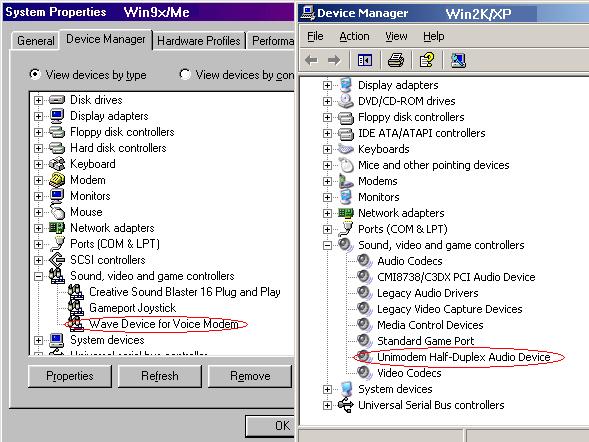
My modem supports VOICE but I can't find the "Wave Device"("Audio Device") installed
Windows 2k/XP comes with a variety of "generic" modem drivers - including modems based upon all the popular chipsets. In many cases, adding, changing, or removing a modem is simple: plug and play. But, it doesn't always work that way.
In most caeses, Windows 2k/XP recognizes your Data/Voice/Fax modem as Data modem only and install the "generic" modem driver which shipped with Windows itself. So you may not see the "Wave Device"("Audio Device") driver for modem listed in the Device Manager. After that you can only dial up to the internet but can not record your phone calls with your Modem at all.
If you are sure your modem supports VOICE, please Update or Reinstall the correct modem driver.
How to update the modem driver?
- Find the correct modem driver: CD-Rom ships with your modem or find a XP or Win2k-compatible driver from your modem vendor(or internet download sites)
- Open the "Device Manager" as showed above
- Expand the Modems tab by clicking on the +, and your modem should be listed. Right click the modem name and a menu pops up
- Now You can choose the Update Driver... and select 'Install from a list or specific location(Advanced)', then use the Don't search / Have Disk option to point 2K/XP to a compatible driver you've downloaded (or in the cd-rom)
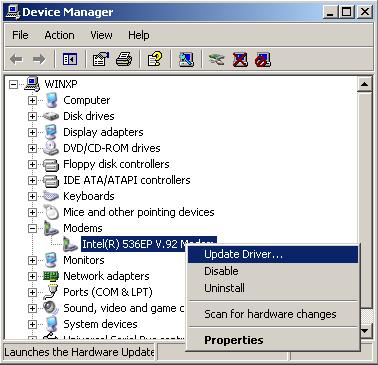
How to reinstall the modem driver?
- Find the correct modem driver: CD-Rom ships with your modem or find a XP or Win2k-compatible driver from your modem vendor(or internet download sites)
- Open the "Device Manager" as showed above
- Expand the Modems tab by clicking on the +, and your modem should be listed. Right click the modem name and a menu pops up
- You can try Uninstall and then try the Add Hardware wizard(Scan for hardware changes) - select 'Install from a list or specific location(Advanced)', then use the don't search / Have disk option to point to a compatible driver
Does my modem support Caller ID?
Generally we use HyperTerminal to test our modem if it supports Caller ID.
First make sure you can see the Caller ID information from a normal telephone LED displayer.
Then do the following:
- Select "HyperTerminal" by navigating through the Start button to "Programs," then "Accessories," then "HyperTerminal"
- Double click on "hyperterm" or "hyperterm.exe"
- Name the new connection "test," and select OK
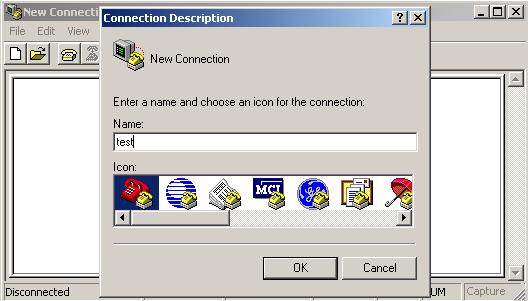
- Change the "Connect using" to Direct to COM X, where X is the COM port used by the Modem
- Click on OK on the screen for "Port Settings", the click OK
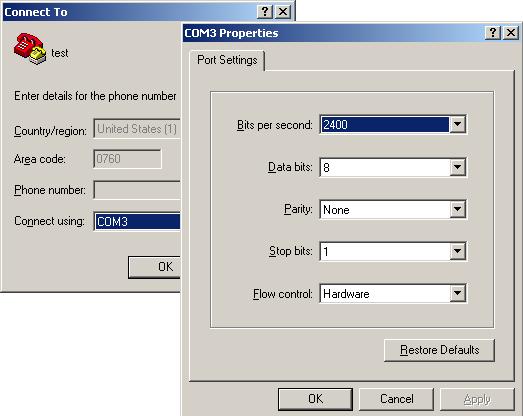
- Type the string ATZ to initalize the modem (OK should appear on the screen)
- Enter the Caller ID setup string to be tested: AT+VCID=1 for most modems (see notes)
- If OK results, continue; If ERROR results the modem may not support Caller ID; try a different setup string
- Have someone call you and watch the terminal screen
- If Caller ID is working, you will see the word RING, followed by one or more additional data lines. The word RING will then continue to appear for each incoming ring.
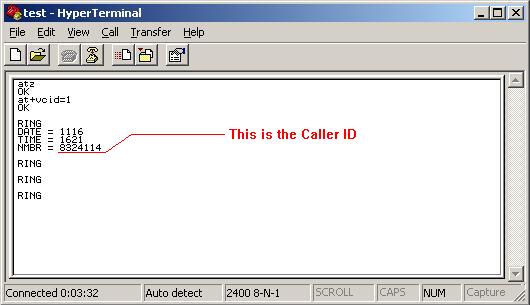
- If Caller ID is not working, you will only see the word RING for each incoming ring. If this is the case try another Caller ID setup string and go back to step 2.
Notes:
For most MODEMs, the string AT+VCID= 1 will enable Caller ID. On some voice basedMODEMsthestringisAT#CLS=8#CID=1. Look in the user’s manual for your MODEM to see if any setup string is referenced or mentioned. Other common setup strings are:
- AT#CID=1
- AT%CCID=1
- AT%CCID=2
- AT#CID=2
- AT#CC1
- AT*ID1
Recommended Voice Modem
Model
Where To Buy
USB 2.0 External Modem (Highly
Recommended)
Ebay
Aopen FM56-PLX (PCI Internal)
NCIXUS
Aopen FM56-PX (PCI Internal)
NCIXUS
Aopen FM56-EXV (External
Serial)